Good news guys, µRemote already supports magnet links.
If you are having trouble with this, all you need to do is update webui core.
How?

Showing posts with label English. Show all posts
Showing posts with label English. Show all posts


µRemote development suspended
You might have noticed the lack of updates by now, so if you are wondering what is going on and when a new version will be available, I regret to inform you I won't be updating µRemote for a while, could be month, years or forever. I'm not using this program anymore so I prefer to put my energy into other things.
Sorry.
Sorry.
µRemote 2.3.2 is out!
This release fixes an important bug that was crashing µRemote when adding big torrents.
Changelog:
Changelog:
- FIX: crash with big torrents
- FIX: show minor build number in about window
- ADD: In new label window, press enter to save, escape to cancel
- ADD: In main window, press Ctrl + L to open new label window
µRemote 2.3.1 is out!
Changelog:
- FIX: token support partially broken (freezes µRemote after 30 minutes or so).
- ADD: you can now drag and drop torrents in main window to load them
µRemote 2.3 is out!
Changelog:
- FIX: Test connection not always working
- FIX: Error when uploading a torrent if the webui username contains special characters
- FIX: Window size issue after returning from maximized
- ADD: Trackers tab
- ADD: 4 more languages
Updated installer and zip
I've updated the installer and zip with Italian corrections and the new Dutch translation.
You won't be notified of this, 'cause is a minor change.
Also there are other minor cosmetic fixes:
- 'Filter by label' textbox is more width
- Some partially hidden textbox in Preferences
F11 issue is also fixed.
µRemote 2.2.2 is out!
Changelog:
Advice:
If you access your WebUI using https, you have to write 'https://ip_or_hostname' in µRemote settings (under IP/Hostname).
If you only write your server ip or hostname without 'https://' or 'http://', µRemote is going to use 'http://'.
Regards.
- FIX: tab stops in preferences
- FIX: connection via ssl
- FIX: italian language was outdated in the installer
Advice:
If you access your WebUI using https, you have to write 'https://ip_or_hostname' in µRemote settings (under IP/Hostname).
If you only write your server ip or hostname without 'https://' or 'http://', µRemote is going to use 'http://'.
Regards.
µRemote 2.2.1 is out!
Hi,
Basically, the changelog is resumed in this mockup that Single Feniks sent me:

Thanks to Tyron Gower for providing precious bandwidth and diskspace
Basically, the changelog is resumed in this mockup that Single Feniks sent me:

Thanks to Tyron Gower for providing precious bandwidth and diskspace
µRemote 2.2 is out!
Changelog:
- ADD: support for token authentication.
- ADD: let the user specify the time between reloads of file list (in Preferences/UI).
- FIX: error when using port 443 over http.
- FIX: hotkeys removed in previous build.
- CHANGE: only make a new torrent/file list requests after receiving a response or timeout of the latest one.
µRemote 2.1.2 is out!
µRemote 2.1.1 is out!

Changelog:
- ADD: loading torrent status.
- ADD: timeout request customization.
- ADD: new languages: Polish (Thanks to maTTi) and Swedish (Thanks to Petrus Lundberg).
- FIX: test connection not using defined proxy settings.
- FIX: some missing strings to translate.
- FIX: month display in logger.
- FIX: additional checkouts to 'check for updates'.
- FIX: bring to front when relaunching and it's minimized in tray.
- CHANGE: sorting by queue order now acts like in uTorrent.
- CHANGE: loading torrents now occurs synchronously but in a background thread.
- CHANGE: show 'unlimited' instead of 0 kB/s in global speed menu.
Regards.
Another Resx editor for translators
Hey,
I'm working on my own Resx Editor, it's called Simple Resx Editor. I would love to hear some feedback.
Thanks.
Cheers.
I'm working on my own Resx Editor, it's called Simple Resx Editor. I would love to hear some feedback.
Thanks.
Cheers.
µRemote 2.1 is out!
Changelog:

- FIX: incorrect display of times in logger tab (mix of 24 hours format and AM/PM)
- FIX: incorrect forced seeding icon
- CHANGE: improved a few methods relative to torrents status (lower cpu usage)
- CHANGE: 'filter by label' textbox now has a watermark
- ADD: new hotkey Ctrl + A: select all torrents
- ADD: new hotkey Ctrl + O: add torrent dialog
- ADD: status information for connected server
- ADD: left click on global upload/download speed to set global upload/download speed*

µRemote 2.0 is out!
If you're going to install this, first uninstall any older version.

Changelog:
Tip: If you want to change the filetype icon of µRemote, just replace uRemote.exe.ico that is located in the same folder of uRemote.exe. I'm not good making icons :)

Changelog:
- ADD: Option to use proxy settings from Internet Explorer.
- ADD: Edit label (will load the current label on the new label window).
- ADD: Set file association from µRemote (in Preferences, General tab).
- ADD: Option to load µRemote when you log in (in Preferences, General tab).
- ADD: Translation to Portuguese (Brazil) (Thanks to Tiago Rafael Cintra).
- ADD: Option to enable/disable global hotkeys.
- ADD: Connection manager (Now you can store as many servers as you like).
- CHANGE: Reload Listing icon.
- CHANGE: Settings.txt is now fully encrypted.
- CHANGE: Error.log will be overwritten after 10 days and if it sizes is > 200 KB.
- FIX: Some random crashes when you load torrents at startup.
- FIX: Proxy connection not sending authentication header.
- FIX: Layout problem in form "Add new label".
Tip: If you want to change the filetype icon of µRemote, just replace uRemote.exe.ico that is located in the same folder of uRemote.exe. I'm not good making icons :)
Thanks to those who wrote comments on µRemote.


µRemote 1.9 is out
Hello everybody, here's a new version of uRemote
Changelog 1.9
Hotkeys (works only when uRemote is focused)
Changelog 1.9
- FIX: Log connection error in Logger tab
- FIX: FR translation (just one character LOL)
- ADD: Global hotkeys for Start all, resume paused, pause started, stop all
- ADD: If an error occurs will be logged in Logger tab with the path to Error.log file
- CHANGE: Hotkeys for Scheduler now are Global and with other combination
- Ctrl + Shift + A: Start all torrents
- Ctrl + Shift + S: Stop all torrents
- Ctrl + Shift + Z: Resume all paused torrents
- Ctrl + Shift + X: Pause all active torrents
- Ctrl + Shift + Q: Turn Scheduler ON
- Ctrl + Shift + W: Turn Scheduler OFF
Hotkeys (works only when uRemote is focused)
- Ctrl + R: Force reload listing
- Ctrl + P: Open preferences
- F5: Show/Hide detailed info
- F11: Open uTorrent WebUI in the default browser
µRemote 1.8 is out
Changelog 1.6:
Changelog 1.7:
Changelog 1.8:
- FIX: Permission issue in Windows Vista / 7, now it's not necessary to run uRemote as an administrator
- FIX: If the selected port is 443, uRemote will use https to contact the WebUI (You don't have to put https:// or http:// in hostname)
- FIX: ETA is now more accurate
- ADD: Ctrl + R: Reload list (F5 is already taken by the preferences window)
- ADD: New option to launch the default browser with uTorrent WebUI (F11 is the shortcut)
- ADD: Hungarian language, thanks to Tusk
- ADD: Auto-retry on connection lost with incremental delay
- ADD: Logger tab (work in progress)
- ADD: Ctrl + S: Enables uTorrent Scheduler / Ctrl + Shift + S: Disables uTorrent Scheduler
- ADD: "Added On" column. Pay attention to this: "Added On" and "Completed On" are not supported in WebUI API, so I have to make a workaround storing that info in a plain txt. There's a big chance that those columns don't show the same info that is in uTorrent. Other day I'll explain this better, now I don't have time.
Changelog 1.7:
- FIX: Turn Scheduler on was not working
- FIX: "Completed On" column was showing a wrong date
- FIX: All bugs related to loading torrents should be solved now
Changelog 1.8:
- ADD: Traditional Chinese, thanks to Joel Lee
- CHANGE: Dropbox size lowered to 30x30 px
Translations
Hi,
By popular demand here are the language files, if you found a misspelled word, a missing string, or you just wanna make your own translation for a new language, now is the time:
By popular demand here are the language files, if you found a misspelled word, a missing string, or you just wanna make your own translation for a new language, now is the time:
- German (by Dieter Pottendorfer)
- English (by Matías Palomeque)
- French (by Jean-Martin A.)
- Hungarian (by Tusk)
- Italian (by Giovanni Adamo)
- Korean (by Dustwo)
- Norwegian (Bokmål) (by Robert A. Hestetun)
- Norwegian (Nynorsk) (by Robert A. Hestetun)
- Dutch (by Jeroen Bobbeldijk)
- Polish (by maTTi)
- Portuguese (Brazil) (by Tiago Rafael Cintra)
- Russian (by Шамаев Степан aka SKiPP)
- Slovenian (by Metod Prelec)
- Swedish (by Pommes56)
- Turkish (by Osman Tosun)
- Chinese (Simplified) (by hy902000 - hdchina)
- Chinese (Taiwan) (by Joel Lee)
or you can use my own resx editor: Simple Resx Editor (Recommended :)
If you have any problem, post a comment in this post.
Cheers.
If you have any problem, post a comment in this post.
Cheers.
What is µRemote?
µRemote is a program that you can use to remote control your µTorrent installation on another computer. This can be µTorrent on a home computer from work, another computer in your network, a seedbox etc. In other words you don't have to install µTorrent on all the computers you are using and can organize your downloads on one computer.
What do I need to run µRemote?
To be able to use µRemote you need to have:
How do I setup WebUI?
WebUI is a add-on for µTorrent that gives you the possibility to remote control your µTorrent installation using your browser.
From µTorrent v1.8 it is also installed with the program, you shod still look for the latest version on the WebUI part of the forum.
When you download WebUI you can either:
Control that you save it as webui.zip and not as something like WebUI.1220503364.zip (timestamp/all the numbers shod not be included in the filename)
You can find the English how to here: http://trac.utorrent.com/trac/wiki/HowTo
Then you are set and you can activate WebUI in µTorrent.
Mark that YourIP here refers to the IP of the computer that got µTorrent installed.
Only thing left then is setting up µRemote
Setting up µRemote is a pretty simple process. The first time you start up µRemote you will get asked for the needed information. If you already have started µRemote you can find the setup by clicking Options -> Preferences, ore simply click CTRL+P on your keyboard. You shod then get up the following window:
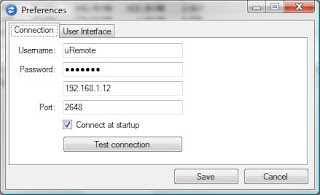
Her you shod enter the username, password and IP address to the computer running µTorrent, port (then the port µTorrent use ore the one you put up as a alternative in the WebUI setup earlier).
When you done this the only thing left now is to click Save and start using the program.
What do I need to run µRemote?
To be able to use µRemote you need to have:
How do I setup WebUI?
WebUI is a add-on for µTorrent that gives you the possibility to remote control your µTorrent installation using your browser.
From µTorrent v1.8 it is also installed with the program, you shod still look for the latest version on the WebUI part of the forum.
When you download WebUI you can either:
- Download it directly to the %Appdata%\uTorrent folder.
- Download the file to a temporary folder and copy it to the %Appdata%\uTorrent folder afterwards. To open the folder you can click the Windows button + R on your keyboard, type in %Appdata% click Enter and go to the uTorrent folder and paste the webui.zip file.
Control that you save it as webui.zip and not as something like WebUI.1220503364.zip (timestamp/all the numbers shod not be included in the filename)
You can find the English how to here: http://trac.utorrent.com/trac/wiki/HowTo
Then you are set and you can activate WebUI in µTorrent.
- Start µTorrent and go to the options -> Preferences (or click CTRL + P on your keyboard)

- Go to Web UI in the list, type in your choice of username and password (you would need this when you're setting up µRemote later.)

- It can be idea to set up a alternative listening port (here set to 2648), if you don't want to use the µTorrent connection port.


Mark that YourIP here refers to the IP of the computer that got µTorrent installed.
Only thing left then is setting up µRemote
Setting up µRemote is a pretty simple process. The first time you start up µRemote you will get asked for the needed information. If you already have started µRemote you can find the setup by clicking Options -> Preferences, ore simply click CTRL+P on your keyboard. You shod then get up the following window:

Her you shod enter the username, password and IP address to the computer running µTorrent, port (then the port µTorrent use ore the one you put up as a alternative in the WebUI setup earlier).
When you done this the only thing left now is to click Save and start using the program.
Subscribe to:
Posts (Atom)